
QuickBooks Desktop Payroll is an integrated payroll add-on for users running locally installed or hosted versions of QuickBooks Desktop (Pro Plus, Premier Plus, and Enterprise). Unlike cloud-native payroll apps, QB Desktop Payroll relies on downloadable tax tables to calculate withholdings locally.
Thank you for reading this post, don't forget to subscribe!Thank you for reading this post, don't forget to subscribe!Intuit has stopped selling new standalone subscriptions for QB Desktop Pro/Premier to new US customers, pushing all standalone desktop payroll services toward QuickBooks Enterprise with Payroll or cloud-based QuickBooks Online Payroll. Existing QB Desktop Payroll subscribers face mandatory annual software updates—if your core QuickBooks Desktop version reaches "sunset" (end-of-support), connected payroll services, tax table updates, and direct deposit functionality are completely disabled.
Building Construction Solutions: Optimizing Modern Engineering and Project Delivery
1. The Discontinuation & Sunset Reality
If you use QuickBooks Desktop Payroll, understanding Intuit's lifecycle policy is critical to avoiding sudden payroll processing blockades.
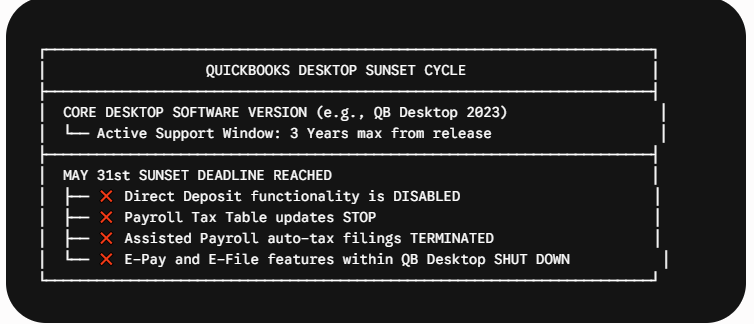
Key Rules for Desktop Payroll Continuity
- The 3-Year Support Window: Intuit enforces a strict sunset schedule every year on May 31st for 3-year-old desktop software. Once a version reaches sunset, all connected live services—specifically Payroll and Direct Deposit—are permanently disconnected until the user upgrades to a supported release or moves to Enterprise/QBO.
- Tax Table Dependencies: Payroll tax rates (FICA caps, state unemployment wage bases, local income tax brackets) are delivered via digital "Tax Table Updates." An unsupported desktop version cannot download these updates, making accurate local calculation impossible.
- The Subscription Mandate: All QB Desktop software, including payroll, operates under recurring subscription licensing rather than perpetual licenses.
2. QuickBooks Desktop Payroll Tiers Compared
Intuit structures QB Desktop Payroll into three primary tiers: Basic, Enhanced, and Assisted (plus Enterprise Payroll).
| Feature | Basic Payroll | Enhanced Payroll | Assisted Payroll | Enterprise Payroll |
| Primary Target | DIY businesses using external accountants | Self-sufficient small businesses | Mid-market firms wanting tax liability offload | Large teams needing high-volume customization |
| Gross-to-Net Calculations | Automatic | Automatic | Automatic | Automatic |
| Direct Deposit Options | Included / Fee per check | Included / Fee per check | Included | Included |
| Federal & State Tax Form Prep | ❌ Manual | DIY (Auto-populates 941, 940, W-2) | Full Service (Intuit files forms) | Options for DIY or Full Service |
| Tax Payment Remittance | ❌ Manual | DIY (E-Pay via app) | Full Service (Intuit remits funds) | Options for DIY or Full Service |
| Multi-Company Support | 1 Payroll Sub per EIN | 1 Sub supports multiple EINs | 1 Sub per EIN | Based on licensing |
3. Step-by-Step Payroll Processing Workflow in QB Desktop
To process payroll correctly inside QuickBooks Desktop without triggering calculation errors or missing direct deposit windows, follow this operational sequence:
1.Download Latest Payroll Tax Tables:Required before every payroll run.
Go to Employees > Get Payroll Updates. Select Download Latest Update. Verify that the tax table version matches the current IRS and state tax release to ensure accurate FICA, federal, and state tax withholdings.
2.Import or Enter Employee Hours:Capture worked time for hourly workers.
Enter hours worked via the integrated Weekly Timesheet interface or sync hours directly from QuickBooks Time (formerly TSheets). For salaried employees, verify standard pay rates and earnings items.
3.Open Pay Employees Interface and Set Pay Period:Initiate paycheck creation flow.
Navigate to Employees > Pay Employees > Unscheduled Payroll (or select your predefined Pay Schedule). Set the Pay Period Ends date and the Check Date. Ensure the Check Date accurately reflects the actual disbursement date for tax accounting.
4.Review and Adjust Individual Paycheck Details:Audit deductions, tax items, and net pay.
Click on an employee's name to open the Paycheck Detail window. Verify base wages, overtime multipliers, pre-tax health insurance/401(k) deductions, and employer matching fields. Adjust any one-off additions (bonuses, tips, expense reimbursements).
5.Create Paychecks and Send Direct Deposit Data:Strict timing requirement for Direct Deposit.
Click Continue, then review the Payroll Summary. Select Create Paychecks. If using Direct Deposit, you must click Send Payroll Data to transmit ACH instructions to Intuit’s financial network by 5:00 PM PT at least 2 banking days prior to the check date.
6.Print Checks, Paystubs, and Review Liability Balances:Post-payroll accounting task.
Print physical paychecks on voucher check stock or generate digital paystubs. Navigate to Employees > Payroll Taxes & Liabilities to review accrued federal, state, and local liabilities scheduled for upcoming tax payments.
4. Interactive Tool: QuickBooks Desktop vs. Cloud Migration Estimator
Evaluate whether staying on QuickBooks Desktop Payroll or migrating to a cloud alternative (QBO Payroll or Gusto) makes financial and operational sense for your business size.
Payroll Cost Optimizer & Liability Calculator
Calculate your true employer payroll burden, tax liabilities, and provider delivery costs in real time.
💡 Cost Optimization Insight
Loading calculations...| Delivery Model | Est. Annual Admin Fee | Total Annual Cash Outflow | Compliance Risk | Status |
|---|
5. Critical Technical & Compliance Hazards
1. Direct Deposit Lead-Time Restrictions
Unlike some modern cloud platforms offering same-day or next-day direct deposit, QuickBooks Desktop Payroll generally enforces a 2-day lead time for ACH processing. Submitting payroll data after 5:00 PM PT two business days prior to your check date will delay payment disbursements, creating potential wage payment violations under state labor codes.
2. Multi-EIN Payroll Licensing Gotchas
QuickBooks Desktop Enhanced Payroll historically allowed accountants and multi-entity owners to run payroll across multiple Federal EINs under a single base payroll subscription. However, Intuit has progressively restricted this capability, requiring per-EIN verification and individual fee structures on modern software subscriptions. Ensure your license key is properly mapped to each company file to prevent submission rejections.
3. Local Tax Form Customization & E-File Failures
While federal returns (Form 941 / Form 940) update seamlessly via Tax Table Updates, local municipal taxes (e.g., Ohio JEDDs, Pennsylvania local EIT, City of St. Louis) often require manual tax item setup inside QB Desktop. Failing to map these items to the correct Tax Tracking Type results in inaccurate W-2 Box 14/19 reporting at year-end.
FAQ
Is QuickBooks Desktop Payroll being discontinued?
Intuit is not discontinuing payroll for all desktop users immediately, but it has stopped selling standalone QB Desktop Pro and Premier subscriptions to new US customers. Current users must remain on an active, supported subscription version (or QB Enterprise) to maintain access to QuickBooks Desktop Payroll services, tax table updates, and direct deposit.
How do I update payroll tax tables in QuickBooks Desktop?
To update tax tables, open QuickBooks Desktop, navigate to the top menu bar, select Employees, click Get Payroll Updates, check the box for Download Entire Update, and click Update. You must have an active internet connection and an active payroll subscription.
What is the difference between QuickBooks Desktop Enhanced Payroll and Assisted Payroll?
Enhanced Payroll is a DIY system where the software calculates taxes and pre-fills tax forms, but the user is responsible for clicking to submit tax filings and remitting tax payments. Assisted Payroll is a full-service system where Intuit automatically calculates, files, and remits federal and state payroll taxes on your behalf, backed by a tax penalty guarantee.
Can I run payroll in QuickBooks Desktop without an active subscription?
No. You can manually calculate wages and type them into paychecks without a subscription, but QuickBooks Desktop will not calculate tax withholdings, generate statutory payroll tax forms, create W-2s, or transmit direct deposits without an active payroll subscription on a supported version of QuickBooks.
How many days before payday must I submit direct deposit in QuickBooks Desktop?
Standard direct deposit in QuickBooks Desktop requires payroll data to be transmitted by 5:00 PM Pacific Time at least two business days prior to the pay date (excluding weekends and federal holidays).